Running a Promotional Discount Sale
Shopify
Preface
Shopify, the internet's largest and most accessible online store platform, does not have a way to display group-discounted item prices. Shopify uses a system of Discount Codes and Automatic Discounts of 3 different varieties: Product Discounts, Cart Discounts, and Shipping Discounts. Our approach leverages the advantages of Automatic Product Discounts to keep hassle low for the customer and prevent over-discounting / discounting items that should not be. Through some manual overriding of the website templates we are able to display approximations of the cart price of automatic-discounted items, though the process does require a few things get punched in in multiple ways to get there.
The process involves a one-time (though maybe reset on updates) code injection into the Shopify templates. For each sale after that set up, you must only create discounts for specifically named collections (Shopify's product grouping system), add the appropriate products into the same collections, then add the products to another overarching collection to bring the discount to visibility.
0. The Code
In the template—product.liquid file, add this at the top:
assign on_sale = false
  if current_variant.compare_at_price > current_variant.price
    assign on_sale = true
  endif

  assign target = product

  assign compare_at_price = target.compare_at_price
  assign price = target.price

  assign collections = target.collections | map: 'handle'

  if collections contains 'onsale'
    assign on_sale = true
    assign compare_at_price = target.price
    if collections contains 'sale05'
      assign price = target.price | times:0.95 | plus:1
    endif
    if collections contains 'sale10'
      assign price = target.price | times:0.9
    endif
    if collections contains 'sale15'
      assign price = target.price | times:0.85
    endif
    if collections contains 'sale20'
      assign price = target.price | times:0.8
    endif
    if collections contains 'sale25'
      assign price = target.price | times:0.75
    endif
    if collections contains 'new'
      assign on_sale = false
      assign compare_at_price = target.compare_at_price
      assign price = target.price

    endif
  endif
This block sets
on_saleto false by default. If an item has been discounted internally, it setson_saleto true. It then gets the collections list from the item. If the item is in the onsale collection, it treats the listing price as the original price and applies the discount from the corresponding sale%% collection. If the item is also in the new collection, it resets values to avoid violating MAP.
In badge.liquid, add this at the top:
assign current_variant_on_sale = false
  assign target = badge_product

  assign on_sale = false

  assign compare_at_price = target.compare_at_price
  assign price = target.price

  assign append = ""

  assign collections = target.collections | map: 'handle'

   if collections contains 'onsale'
    assign on_sale = true
    assign compare_at_price = target.price
    if collections contains 'sale05'
      assign price = target.price | times:0.95 | plus:1
    endif
    if collections contains 'sale10'
      assign price = target.price | times:0.9 | plus:1
    endif
    if collections contains 'sale15'
      assign price = target.price | times:0.85 | plus:1
    endif
    if collections contains 'sale20'
      assign price = target.price | times:0.8 | plus:1
    endif
    if collections contains 'sale25'
      assign price = target.price | times:0.75 | plus:1
    endif
    if collections contains 'new'
      comment
      assign compare_at_price = target.compare_at_price
      assign price = target.price
      endcomment
      assign append = "Add to cart for sale price"
    endif
  endif

  if badge_product.price_varies
    for variant in badge_product.variants
      if settings.when_card_price_varies == 'show_from_price'
        if variant.price == badge_product.price_min and variant.compare_at_price == badge_product.compare_at_price_min
          if variant.compare_at_price > variant.price
            assign current_variant_on_sale = true
            assign target = variant
          endif
        elsif variant.price == badge_product.price_min
          assign target = variant
        endif
      elsif settings.when_card_price_varies == 'show_max_price'
        if variant.price == badge_product.price_max and variant.compare_at_price == badge_product.compare_at_price_max
          if variant.compare_at_price > variant.price
            assign current_variant_on_sale = true
            assign target = variant
          endif
        elsif variant.price == badge_product.price_max
          assign target = variant
        endif
      endif
    endfor
  else
    if compare_at_price > price
      assign current_variant_on_sale = true
      assign target = badge_product
    endif
  endif

	if badge_product.price_varies and target.compare_at_price > target.price
		assign product_on_sale = true
	elsif compare_at_price > price
		assign product_on_sale = true
	else
		assign product_on_sale = false
	endif

	assign discount_percentage = compare_at_price | minus: price | times: 100.0 | divided_by: compare_at_price | money_without_currency | times: 100 | remove: '.0' | prepend: "-" | append: '%'

  if settings.show_currency_code
    assign discount_value = compare_at_price | minus: price | money_with_currency | prepend: "-"
  else
    assign discount_value = compare_at_price | minus: price | money | prepend: "-"
	endif
This code does the same as above with the addition of adding an "Add to cart for sale price" note to new collection items. It also makes
product_on_salematch theon_saleflag.
In the {%- if badge == 'sale' -%} block:
{% if product_on_sale == true %}
		{% case settings.discount_badge_type %}
			{% when 'hide' %}
				<div class="sale-badge badge">{{ 'products.product.sale' | t }}</div>

			{% when 'percentage' %}
				{% if current_variant_on_sale and discount_percentage != '-0%' %}
					<div class="sale-badge badge">{% unless append != "" %}{{ discount_percentage }} {% endunless %}{{ append }}</div>
				{% else %}
					<div class="sale-badge badge">{{ 'products.product.sale' | t }}</div>
				{% endif %}

			{% when 'value' %}
				{% if current_variant_on_sale and target.compare_at_price %}
					<div class="sale-badge badge">{{ discount_value }}</div>
				{% else %}
					<div class="sale-badge badge">{{ 'products.product.sale' | t }}</div>
				{% endif %}
		{% endcase %}
	{% endif %}
This makes sure the % discount and new item messages are rendered wherever product cards are.
1. Creating the Discounts
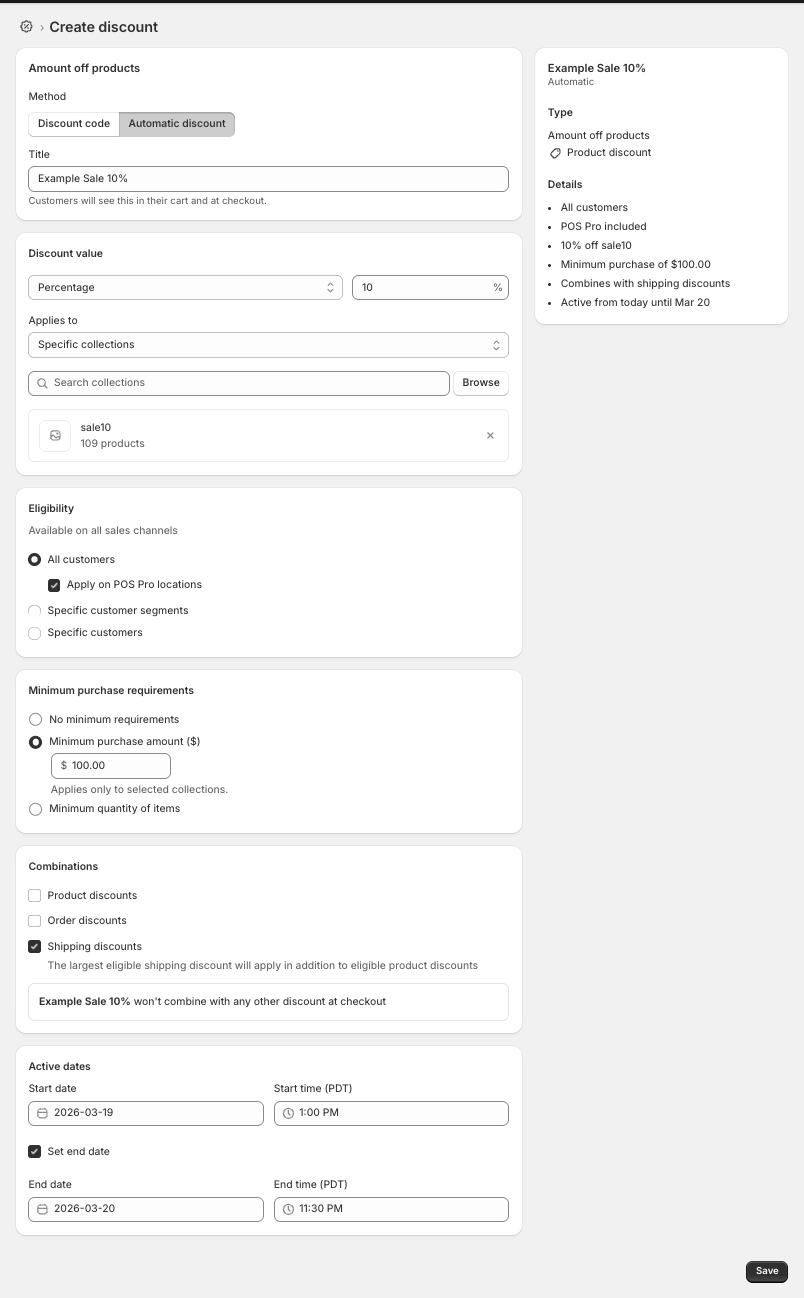
Discounts are created in the Shopify admin, and are applied to collections. For example, a 10% off sale would be created as a product discount with the following settings:
- Method: Automatic discount
- Title: Example Sale 10% off
- Type: Percentage
- Value: 10%
- Applies to: Specific collections
- Collections: sale10
- Eligibility: All customers
- Apply on POS Pro locations
- Minimum purchase requirements: Amount - $100.00
- Combinations: Shipping discounts
- Active dates: Set as needed - always set an end date
It should look something like this:
2. Removing Unwanted Extra Items
Content coming soon.
3. Adding Sale Amounts to Sets of Products
Content coming soon.
Reverb
Preface
Content coming soon.
1. Creating the Sales
Content coming soon.
2. Adding Products to the Sales
Content coming soon.